


Apple’s latest iPhone update, iOS 27, is releasing this month! And unlike last year’s relatively minor Photos update, there are a few new iOS Photos App updates this year that I’m excited about.
As a professional photo organizer, I’m always most interested in the changes that make it easier to organize, find and actually USE the photos on your phone. Here are the iOS 27 Photos changes I think you should know about.

iOS 27 Photos Updates
Shared Albums are finally full resolution!
This is a BIG one! It’s always irked me that iCloud Shared Albums reduced the resolution of anything you added (not enough to stop using them, but still annoying). In other words, someone’s photo you saved from your Shared Album wasn’t necessarily the same full-quality file sitting in their Library.
With iOS 27, Shared Albums now support full-resolution photos and videos! Hooray!
There is rumor that this will end the loophole where Shared Albums did not count toward your iCloud storage, but that remains to be seen.
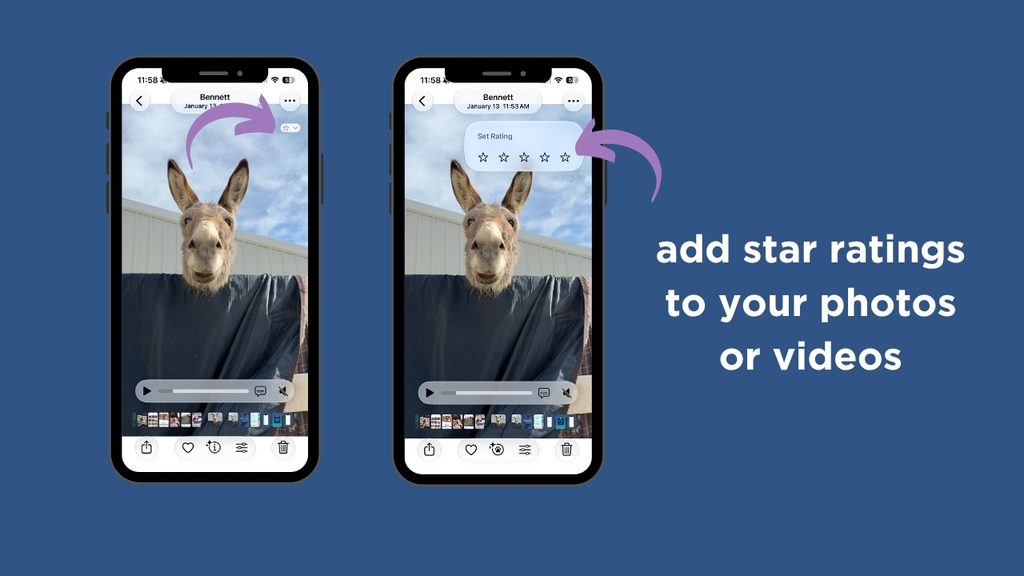
You can rate photos 1–5 stars.
You can now give photos a rating from one to five stars. If you’ve used photo management software like Adobe Lightroom in the past, star ratings may already be familiar to you. They give you another way to identify and sort your best photos.
But do you NEED to start rating every photo in your camera roll? Absolutely not. Personally, I still think the simple Favorite ❤️ button is enough for most people. I use Favorites to quickly identify the photos I love and want to find again.
But I can see star ratings being useful when you’re working on a specific project. Maybe five stars are the absolute BEST photos you want in your family yearbook, four stars are strong contenders and three stars are backups. Or perhaps you’re sorting through hundreds of photos from a vacation and want a little more nuance than Favorite/Not Favorite.
It’s another tool in your organizing toolbox. Use it if it makes your life easier. Ignore it if it makes organizing your photos feel like more work!
You can add keywords to your photos.
Keywords have existed in the Mac Photos app for a long time, but with iOS 27, you can finally add them right from your iPhone. Apple has also made keywords searchable on the iPhone.
So… how is a keyword different than the caption option we’ve had for awhile?
A caption is a description of a photo. You might write something like, “Paint Color: Sherwin Williams Retreat”
A keyword is a label or tag that you would use repeatedly on several photos. For that same photo, your keywords might be “family history”, “school” or “scanned photo”.
Again, I don’t think you need to start adding keywords to every photo in your Library. Apple Photos is already VERY good at searching the actual contents of your photos. You can search for things like “dog in snow,” “birthday cake,” or “beach” without manually tagging anything.
But keywords can be helpful for things Apple can’t automatically identify. For example, you could “Christmas card” for contenders for this year’s card (though I use Albums for this purpose instead).

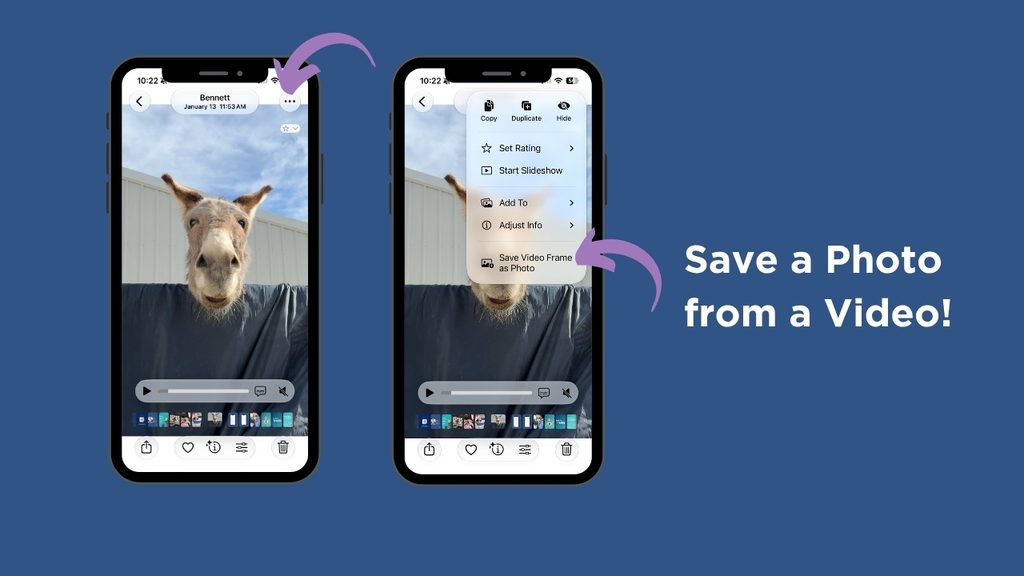
You can save a still photo from a video.
FINALLY! Have you ever recorded a video and realized afterward that there was one perfect moment you wish you had captured as a photo?
In the past, I recommended using the free FrameGrab app to pull a high-quality still photo from your video.
But with the iOS 27 Photos updates, you can now do this right inside the Photos app. Open the video, pause it around the moment you want, then tap the three dots in the top right and choose ‘Save Video Frame As Photo.”
Your iPhone will extract that individual frame and save it as a photo in your Library, keeping the date taken intact!
I LOVE this addition because I take a lot of video. Sometimes the best “photo” of a moment is hiding inside a video you already captured, and now you don’t need a separate app to get it.
Overall, I’m excited about the iOS 27 Photos updates.
Last year’s iOS 26 update felt mostly like Apple rearranging the furniture. This year, we’re getting some useful new tools.
My favorites are definitely the full-resolution Shared Albums and the ability to grab a photo from a video. Star ratings and keywords are nice additions too, especially for people who want a little more control over how they organize their photos.
But remember: just because Apple gives you another way to organize your photos doesn’t mean you have to use it.
You do NOT need to rate every photo. You do NOT need to keyword your entire camera roll. You do NOT need to turn photo organizing into a giant project. Use the features that make your photos easier to find and enjoy… and happily ignore the rest!
Want to make your Photos app work better for you?
My new Camera Roll Reboot is a fun, step-by-step guide (fully updated for iOS 27!) that walks you through the settings and features of the Photos App.. so you can take control of your camera roll in under 30 mins! Find your favorite photos faster, clean up some clutter automatically, and feel more confident using the camera roll you already have. No massive organizing project required!