


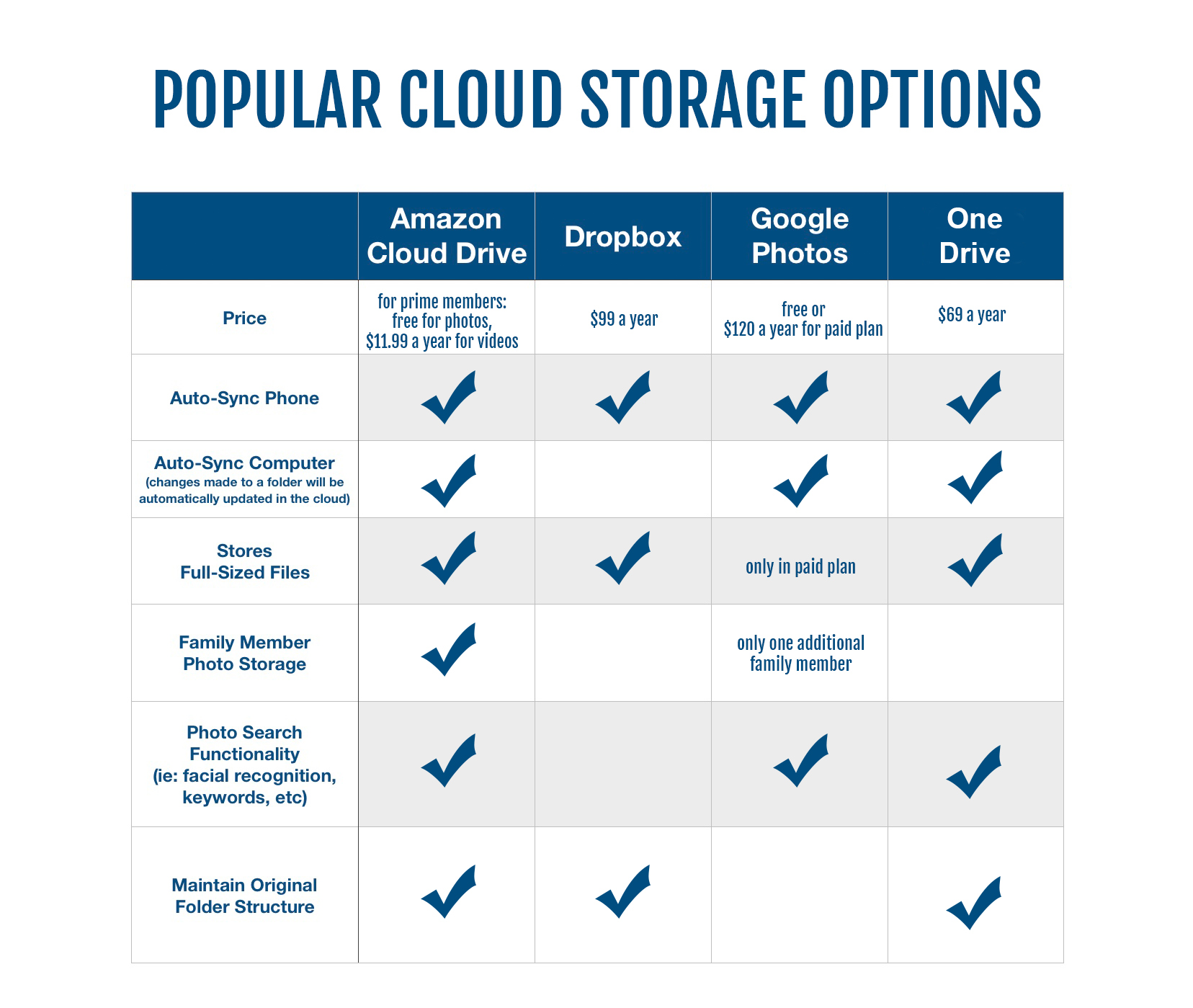
There are many popular cloud storage options out there and it’s hard to know which one is right for you! Here’s a quick comparison of the features of the popular cloud services and why ultimately I chose Amazon Drive as my preferred cloud backup solution.
Note: According to Apple, iCloud is not a ‘backup service’. It is meant for syncing photos across multiple devices.
My personal recommendations: For PC, OneDrive or Amazon. For Mac, Amazon.
how to easily save your photos in the cloud
For all four of the cloud services listed above, uploading your photos is as easy as downloading their FREE app to your phone (all are available on Android and iPhone). Here are screen shots for each of the services:
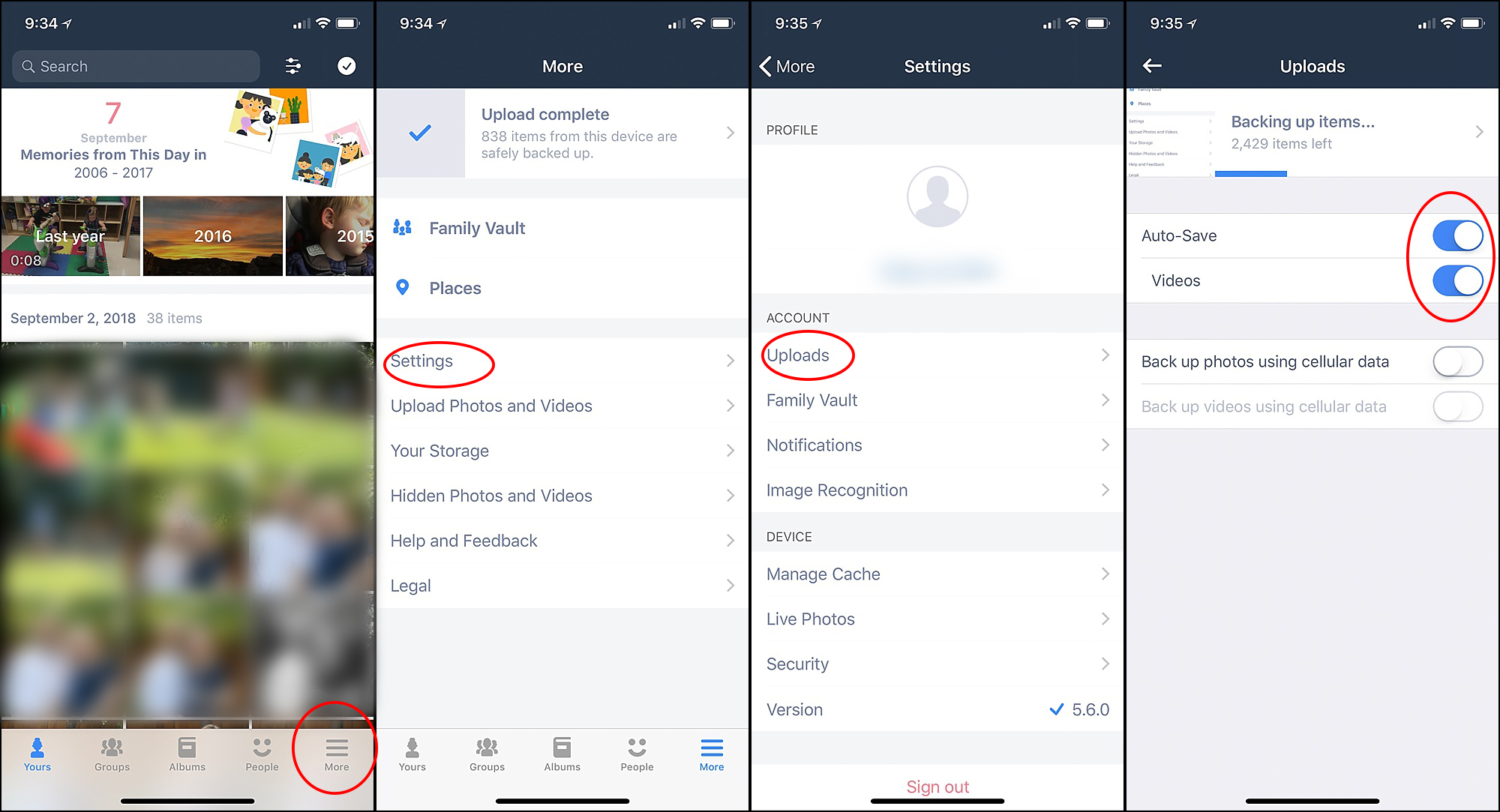
Amazon Photos
Download the Amazon Photos app. Under More/Settings/Uploads, enable Auto-Save. I use Auto-Save for both photos and videos. If you’re an Amazon Prime member, unlimited photo storage is included with your membership, but video storage costs $11.99 a year (for 100GB)- totally worth it!
Pro Tip: It depends how many photos are on your phone, but it’ll likely take a few days for the upload to finish. I recommend leaving the app open on your phone overnight, while your phone is charging- the upload runs faster with the app open, instead of running in the background.
Dropbox
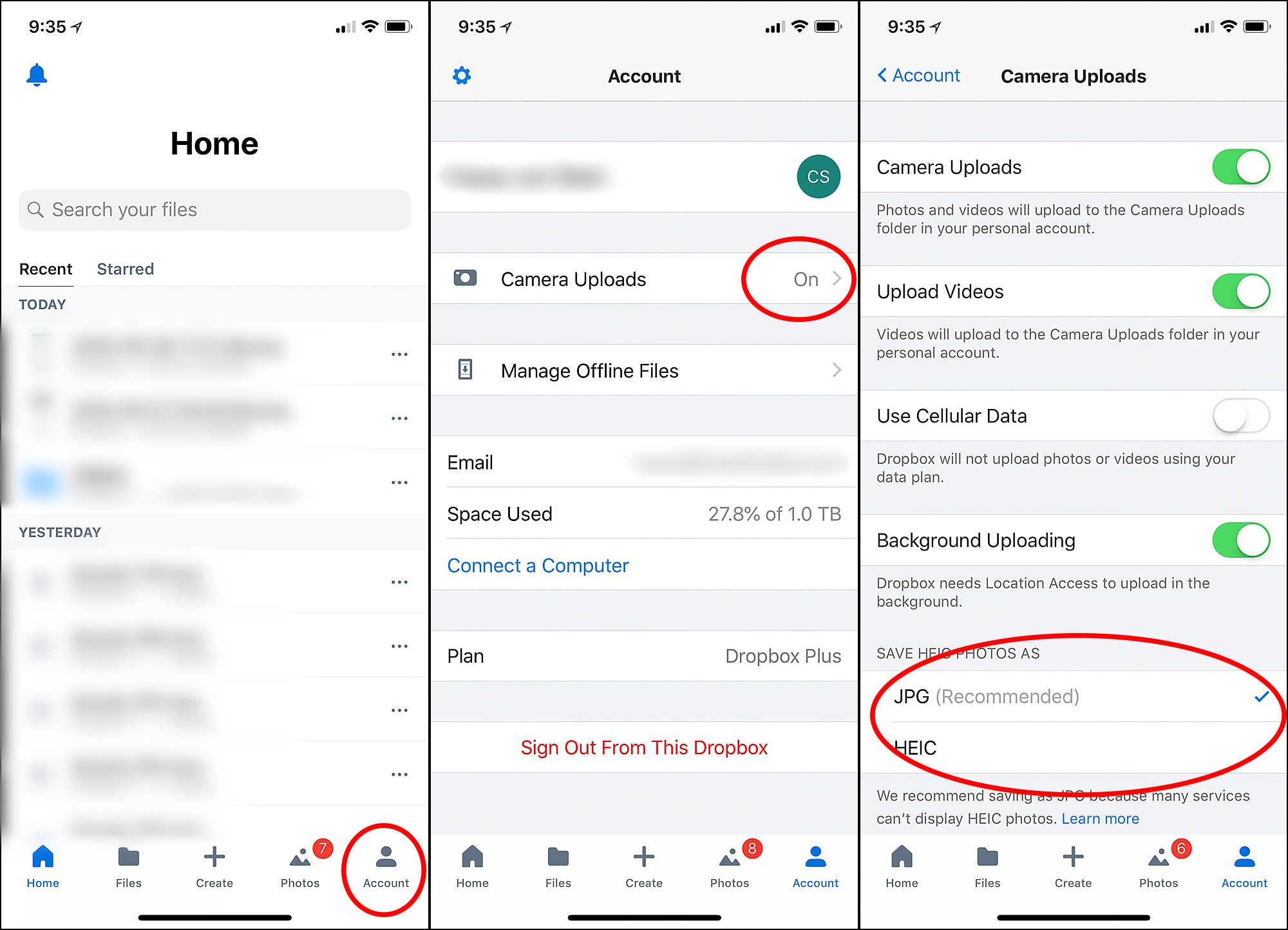
Download the Dropbox app. Under Account/Camera Uploads, turn Camera Uploads on. I backup both photos and videos.
Pro Tip: It depends how many photos are on your phone, but it’ll likely take a few days for the upload to finish. I recommend leaving the app open on your phone overnight, while your phone is charging- the upload runs faster with the app open, instead of running in the background.
Google Photos
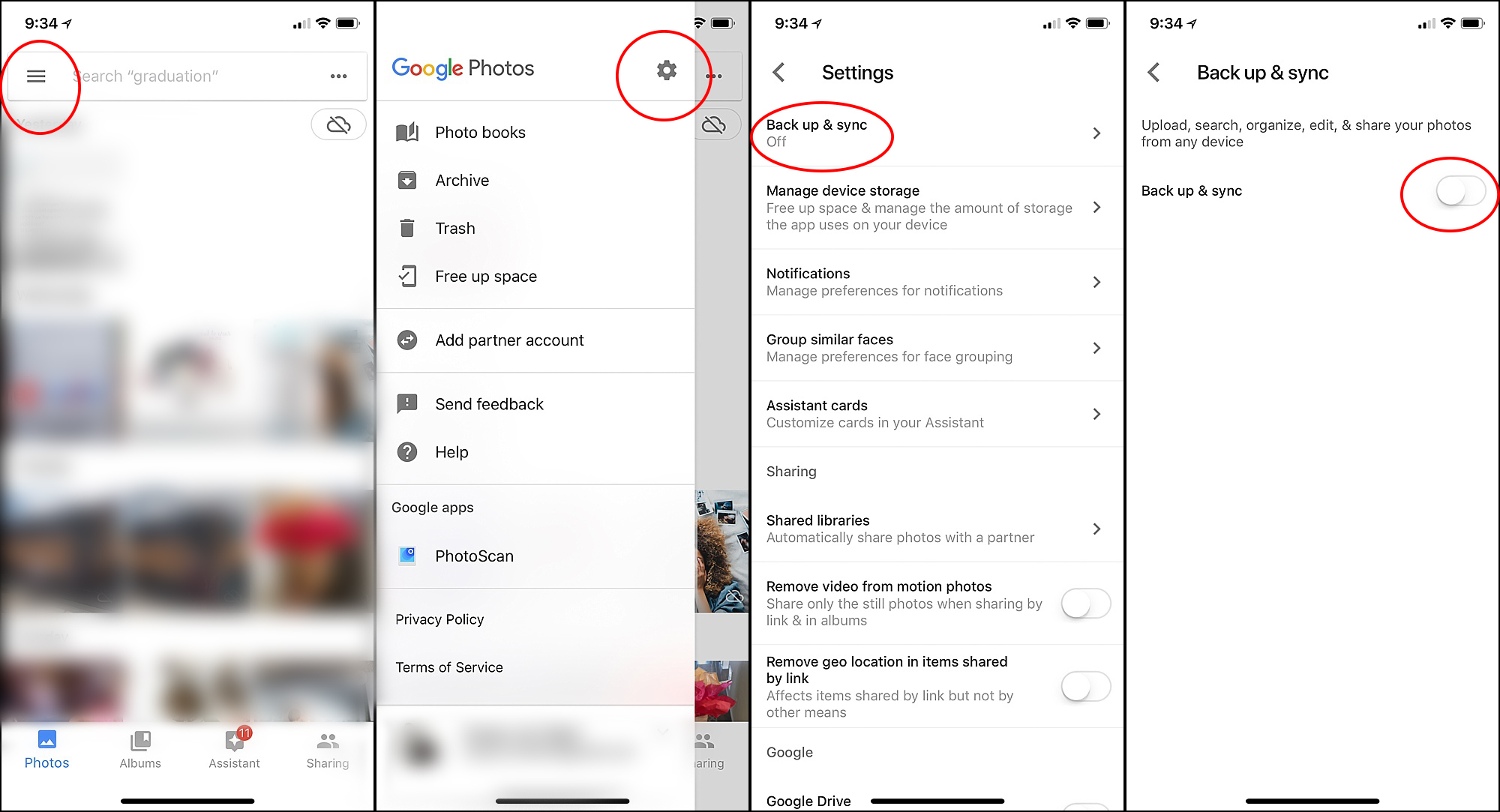
Download the Google Photos app. Click the three lines in the top left, then the Settings Icon, and Backup & Sync.
Pro Tip: It depends how many photos are on your phone, but it’ll likely take a few days for the upload to finish. I recommend leaving the app open on your phone overnight, while your phone is charging- the upload runs faster with the app open, instead of running in the background.
One Drive
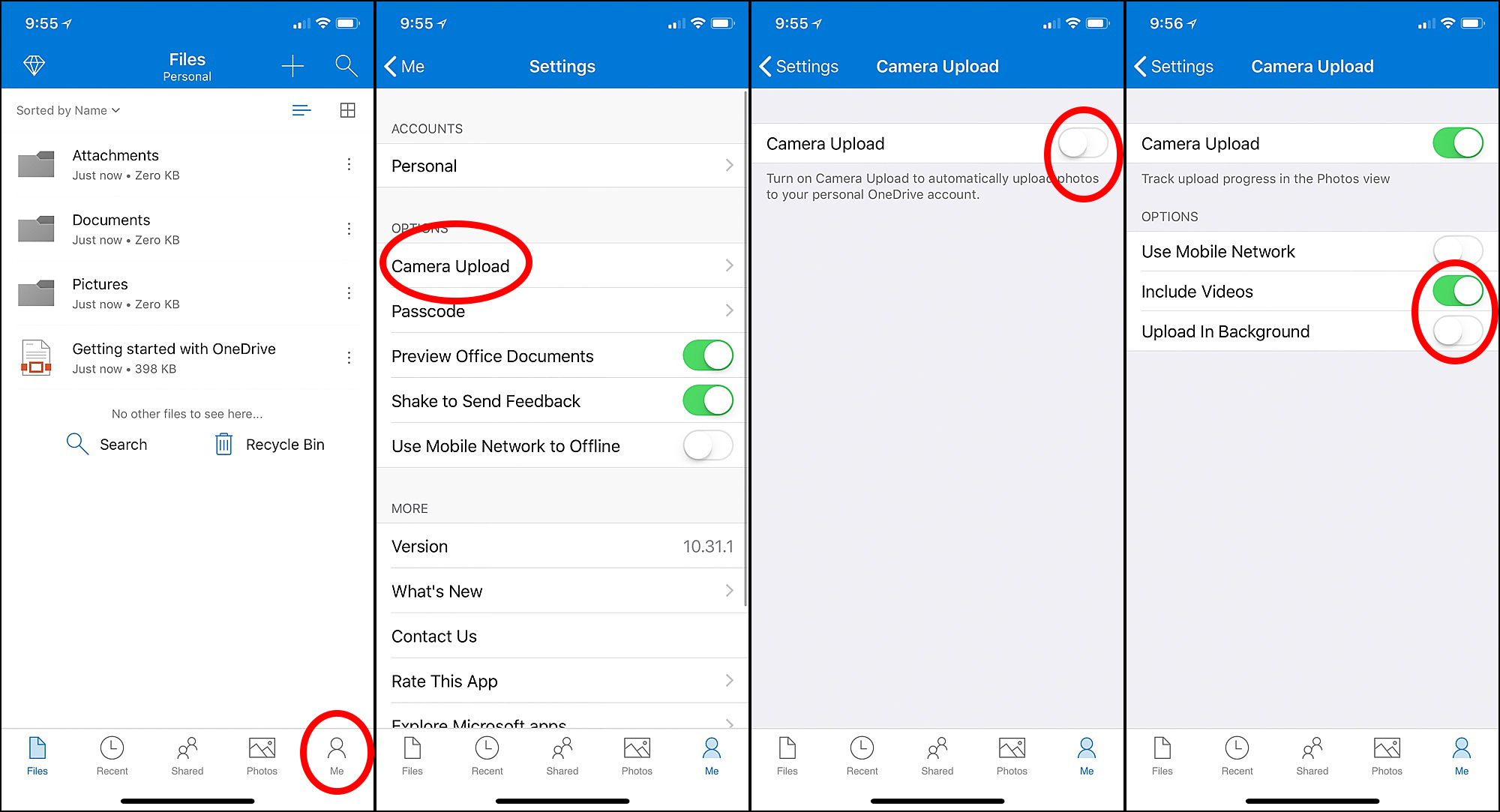
Download the One Drive app. Click Me/Camera Upload and enable the Camera Upload (I recommend turning on ‘include videos’ too).
Pro Tip: It depends how many photos are on your phone, but it’ll likely take a few days for the upload to finish. I recommend leaving the app open on your phone overnight, while your phone is charging- the upload runs faster with the app open, instead of running in the background.
That’s it! After the initial upload finishes (can take a few days depending on how many photos/videos are stored on your phone), your photos will be safely backed up in the cloud!