


You finally sit down to find that one photo. You know the one. Your kid blowing out birthday candles, maybe age 6, maybe 7. You start scrolling. Twenty minutes later you’re knee-deep in screenshots and sunset pics, and you still haven’t found it.
This is the moment most people decide they need to get serious about “getting organized.” If you want to actually feel like your camera roll is organized, the answer is albums.
Yes! Let’s organize your photos with albums!
Albums are the simplest, smartest way to organize your photo collection, and they’re so much better than the old folder system you grew up with. This post walks you through what an album actually is, why it beats folders every time, and a starter list of album ideas you can start building today.
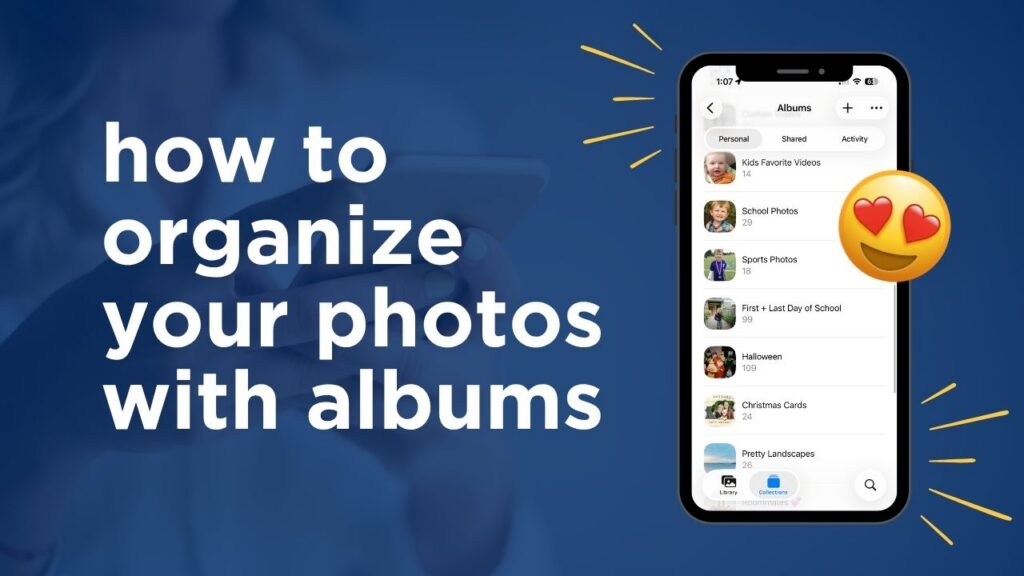
what is an album, really?
An album is a grouping of photos. When photos are added to an album, the photos themselves don’t leave your library. They don’t get duplicated. They don’t get pulled out of your timeline. They just get tagged into a group you can open anytime.
Think of it like a playlist for your photos. The song still lives in your music library, but you can also drop it into your “road trip” playlist and your “workout” playlist at the same time. One photo, many homes.
Understanding what albums are meant to do changes everything about how you find and enjoy your photos.
Once you organize your photos with albums you’ll feel like you’re in control of your camera roll.
why albums are better than folders
Folders made sense in 2003. You had a desktop computer, a digital camera, and a USB cord. You’d dump the photos into a folder called “summer vacation” and call it a day.
But folders have a problem: a photo can only live in one of them. If you put your daughter’s birthday party in the “birthdays” folder, it’s not in the “2024” folder. If you put it in “2024,” it’s not in “kid photos.”
Albums fix this in a few important ways:
- One photo can live in multiple albums at the same time.
- The original photo stays in your main library, sorted by date automatically.
- You can use smart search to quickly pull photos into albums based on what’s actually in them (people, places, things).
- Albums sync across your devices, so the work you do on your laptop shows up on your phone.
- You’re not transferring photos off your device, renaming or dragging things around in folders like it’s a part-time job.
Folders mean you have to manually handle and sort every single photo you take (no wonder you feel chronically behind on your photos!). Albums let your photo app do the heavy lifting, while you just pick the moments worth pulling together.
how to organize your photos with albums
Before you make albums, do yourself the biggest favor: gather all your photos in one place. This is the part people skip, and it’s the reason their photo library never feels organized.
If half your photos are still on an old laptop, a thumb drive, your husband’s phone, or a dusty external hard drive, no album system in the world will save you. Get everything into one cloud library first. Then start building albums there.
Once your library is gathered, make a short list of albums you’d like to create. Fix or six, not fifty.
Need some ideas? You’ll find a starter pack later in this post!
Think of how you can use the search features to build this album faster. Let’s say you’re going to start by making a Halloween album. You could search by words like “Halloween” or “October 31” or “costume” or “pumpkin” or “mask” or “candy.” Review the search results, select the great photos in that mix, choose Add to Album.
That’s right… you DO NOT have to review every single photo in your library to make an incredibly useful album! Let the Photos App do the heavy lifting!
- Pick a small handful of albums to start. Five or six, not fifty.
- Use the search and people features built into your photo app to pull photos in fast.
- Add to your albums as you go, not in one giant weekend marathon.
- Let go of the idea that every photo needs to be in an album. Most don’t.
Done is better than perfect here. A few albums you actually use beats a perfect, elaborate album system that exists only in your head. Unlike folders, albums are flexible and can change as your life changes (pick up a new hobby? add a new album for it!).
album ideas starter pack
Ready to organize your photos with albums? Yay! So… which albums are actually worth making? Albums will be highly personal to your life. Your kids, your hobbies, your interests, your projects. But here’s a starter list with albums I’ve found really useful in my own library. Hopefully it sparks some ideas to get you started.
- best of [kid name].
Make one of these for each kid (don’t forget the pets!). Not every photo of them. The best ones. The ones you’d want in a yearbook, on a wall, or in a slideshow at their graduation. - best of us / family favorites.
A running album of the photos that capture your family at its happiest. Holidays, ordinary mornings, the goofy ones. - home projects.
The before-during-and after photos from projects, the kids smiling in front of open bathroom walls during a remodel. - school memories.
First-day-of-school photos, art projects, awards, field trips, school plays. One album per kid works great for me but some people divide into albums by school year). - travel.
One album per trip is the way I prefer to do it. These are the simplest ones to make- you just select the first date of the trip through the final day of the trip and ‘add to album.’ Then I recommend narrowing that album down to just the best/favorites. Makes creating photo books much easier when you’ve done this work! - holidays.
I shared the Halloween example above… that was the first album I personally made! But you can also make albums for traditions your family has like birthday morning pancakes, sitting on Santas lap over the years, christmas pajamas in front of the tree, the annual gingerbread house competition, etc.
common misconceptions about albums
Albums should be chronological (year, month, etc). Nope. Your photo app already does this automatically. Every photo is tagged with the exact date and time it was taken, and your library is already sorted that way. Building “All 2023” and “January 2024” albums is just recreating work your phone already did for you. That’s precious organizing time you’ll never get back.
Every photo needs to live in an album. This is the old folder mentality talking. With folders, a photo had to live somewhere or it felt lost. Albums don’t work that way. Your main library is the home for every photo. Albums are just the highlight reels you earmark on purpose.
Albums are just like folders. Folders move a file to one location. Albums are smart tags, so the same photo can live in your “Grandma” album, your “Christmas 2023” album, and your “For Printing” album all at once, without creating any duplicates. That’s the whole magic.
ready to organize your photos with albums and build a system that actually works?
Albums work best when your whole photo library is in one place. If your photos are still scattered across phones, laptops, and old hard drives, your album system will never feel complete (and you won’t really feel organized!).
That’s exactly what Backup Bootcamp™ is for. It’s my step-by-step course that walks you through gathering every digital photo you own and getting them safely into one cloud library, so you can finally build the album system you’ve been wanting. Get started here.