


You see the dreaded “iCloud Storage Almost Full” warning on your iPhone and immediately look at your camera roll.
Welp. Guess it’s finally time to delete 10,000 photos.
But hold up. Your photos might not be the problem.
Recently, a follower told me she had about 30,000 photos and was using 1.9 TB of iCloud storage. Meanwhile, I have about 35,000 photos and use only around 300 GB.
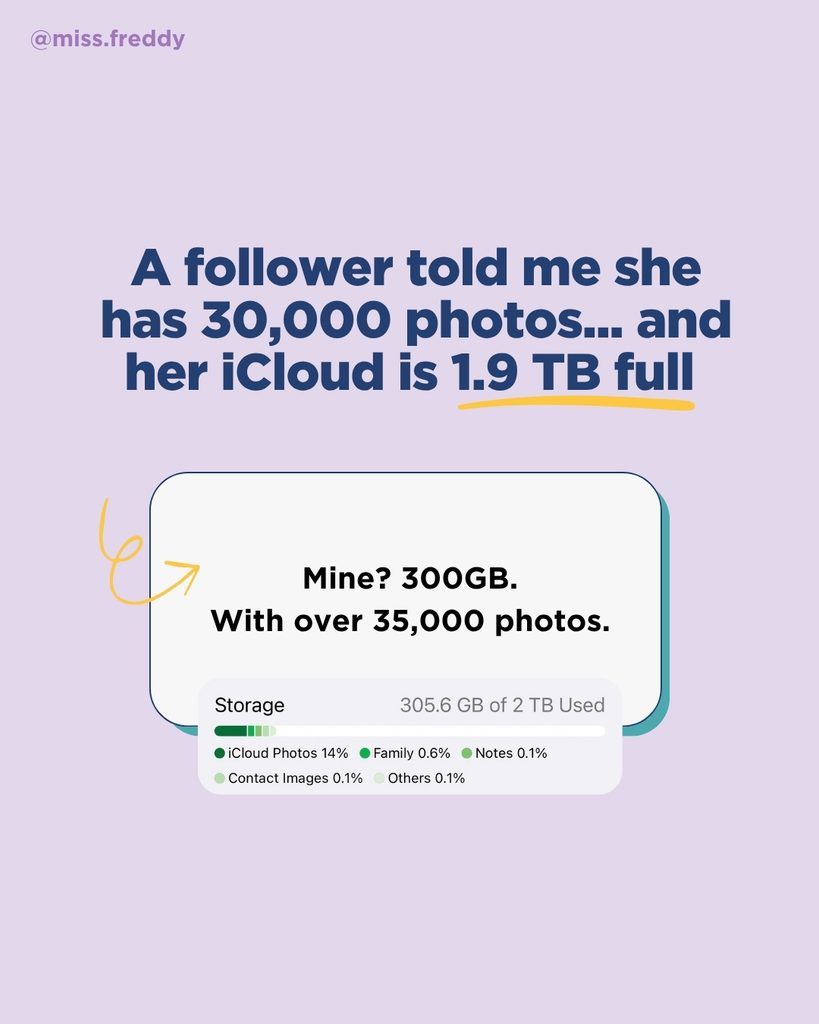
But before you start deleting memories, check what ELSE you’re storing. Here’s where I’d start.
What’s actually using your iCloud storage?
On your iPhone, open Settings → your name → iCloud → Storage. You’ll see which categories are using your space.
As you review what’s using your iCloud space, ask yourself:
Do I need access to this across my devices?
and Would I be devastated if I lost it forever?
If the answer to both is no, it’s a good candidate to remove. If the answer to either is yes, understand where you’ll keep it before removing its iCloud copy.
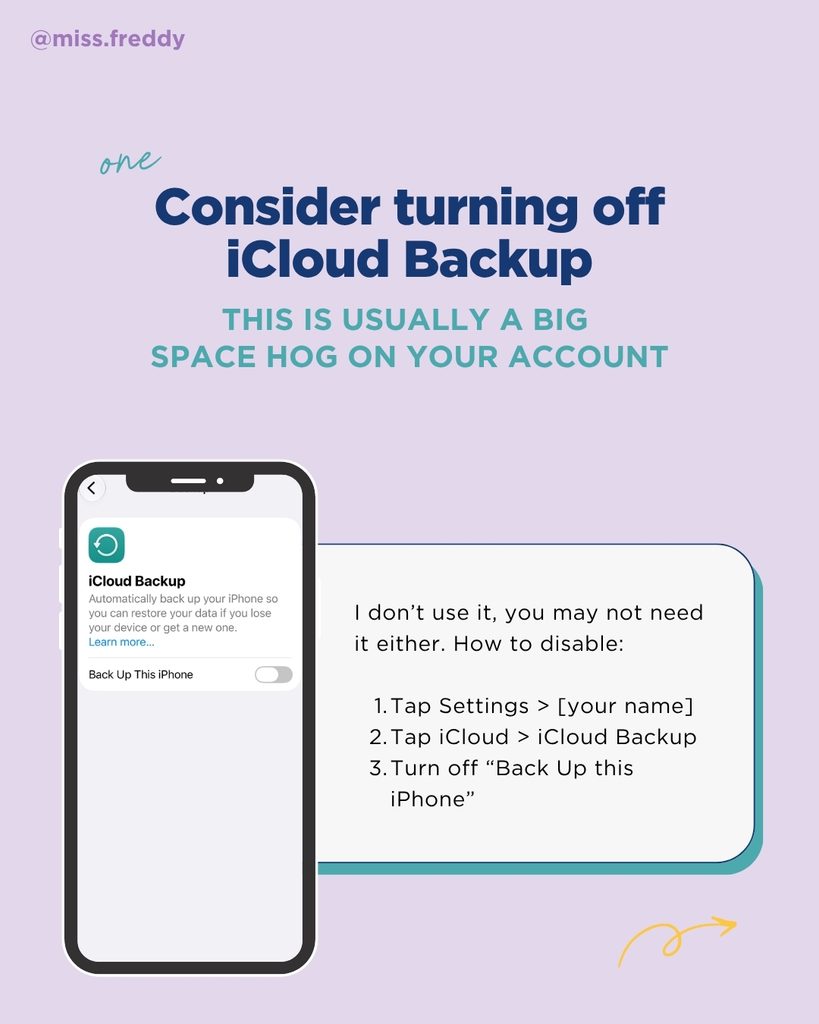
1. Clean up or disable iCloud Backup.
Start with Settings → your name → iCloud → Storage → Backups.
Do you see a backup for an old iPhone or iPad you no longer use? Removing it can free up space. Tap the device, then choose Turn Off and Delete from iCloud.
iCloud Backup and iCloud Photos are separate settings. iCloud Backups is not required to use iCloud Photos.
Personally, I don’t use iCloud Backup. I choose which things I want stored in iCloud; the important ones for me are Photos, Notes, and Contacts.
That doesn’t mean everyone should turn Backup off. Syncing the items I do won’t preserve everything needed to restore your phone. If that matters to you, keep iCloud Backup or set up a device backup on your computer.
2. Review or disable Messages.
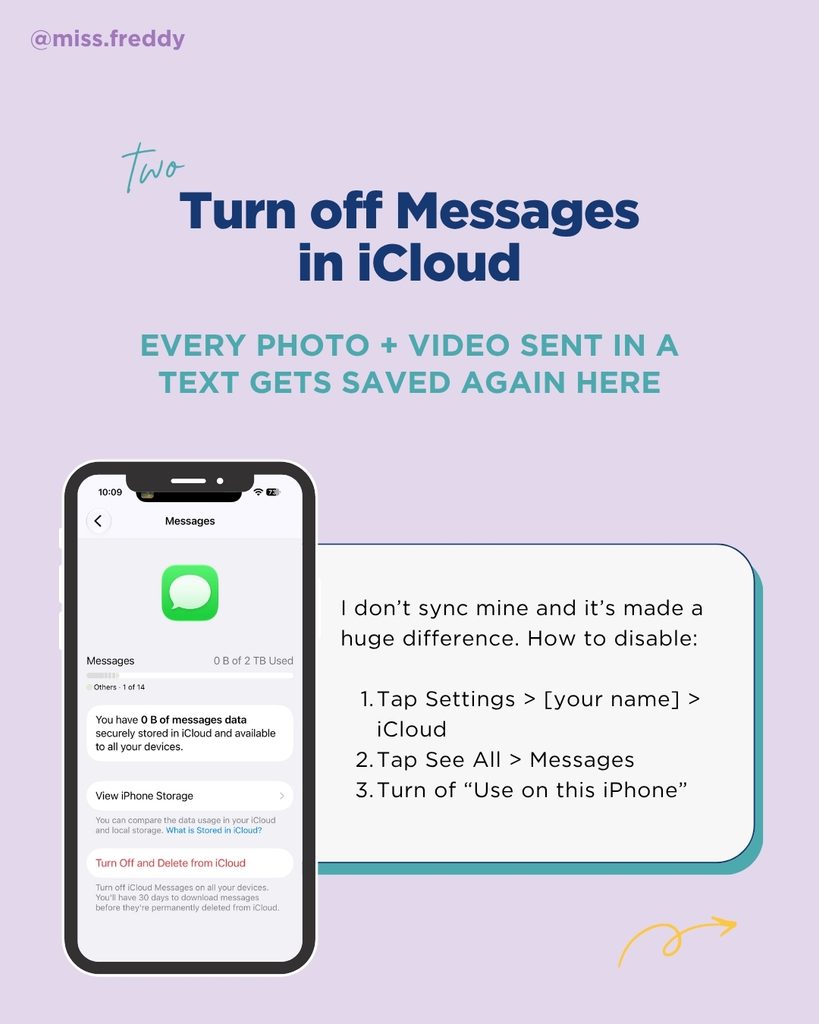
Messages can be another sneaky storage hog. All those videos and attachments in your conversations can add up. Check Settings → your name → iCloud → Storage → Messages to see how much space it’s using.
I personally don’t use Messages in iCloud. But if having your message history stay updated across your Apple devices matters to you, you may want to keep it on.
Here’s the catch: turning off Messages sync isn’t a guaranteed storage fix if you still have iCloud Backup enabled. Messages that aren’t syncing through Messages in iCloud are included in your device backup instead.
If you decide to leave Messages on, you can free space by removing specific conversations or attachments you don’t need. When you save any photos or videos you want from Messages, they’ll stay in Photos even after you remove from Messages (you don’t need two copies).
3. Review app data.
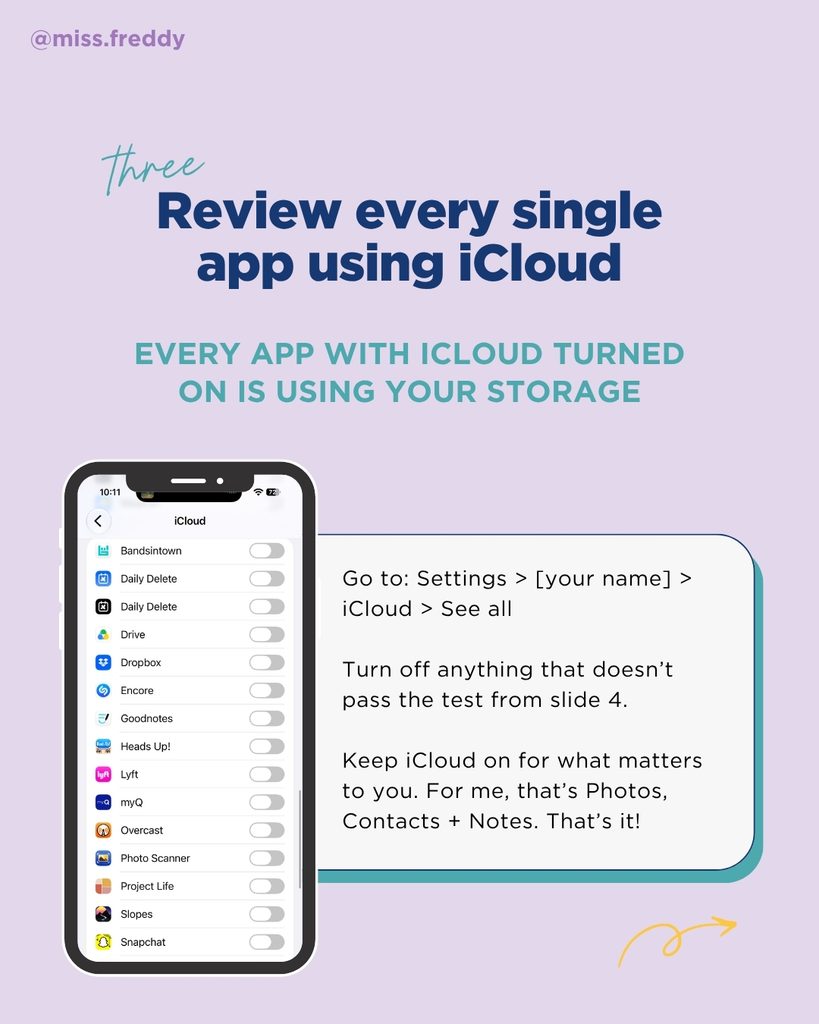
Your storage list may include apps you didn’t realize were using iCloud. In Settings → your name → iCloud → See All turn off anything that doesn’t pass the ‘would I be devastated to lose this?’ test.
I personally have disabled ALL apps. Like I said before, I only want Photos, Notes and Contacts using my iCloud space. I know that if I lost my iPhone, I can always reinstall my apps (for free) from the app store on a new phone.
4. Check your family’s storage usage
If you share an iCloud+ plan, your own account may not be using most of the space. Open Settings → Family → Subscriptions → iCloud+ to review the shared plan and family usage. Sharing storage doesn’t automatically share your photos, messages, or files. Everyone uses their own Apple Account, but their storage usage counts toward the same pool.
Have each person review the three steps above to free space for everyone.
Pro Tip: if one person needs substantially more space, compare the cost of getting them their own plan vs upgrading the entire family to a more expensive shared plan.
What if photos really are the issue?
Then your library may simply need a bigger plan. I’d rather you pay for enough space than constantly delete photos you want to keep. I explain that approach in What to Do When Your Cloud Storage Is Full.
Having a lot of photos is NOT a problem. I LOVE having 35k photos stored in iCloud because of the amazing search features and tech that allow me to use and enjoy my photos… with ease!
Still confused by iCloud?
My free Understanding iCloud Guide explains how it works, common myths, and my recommended settings so you can decide what makes sense for YOUR life.